MICTMICT

Kling 3.0 workflow

Kling AI Video Generator in MICT

Use Kling 3.0 as one of the AI video models available inside MICT Studio. This page explains how to test Kling-style video generation in MICT and compare it with Wan 2.6 for short-form creative work.

Kling AI video generator workflow still in MICT

What is the Kling AI video generator in MICT?

The Kling AI video generator in MICT is a workflow for using Kling 3.0 through MICT's unified video creation interface. MICT is not the official Kling website; it provides a workspace for prompt entry, settings, credit estimates, generation history, and comparison with other active models such as Wan 2.6.

How to use Kling 3.0 in MICT

Use Kling when you want to test its output style inside the same MICT workflow used for other models.

1

Open MICT Studio

Start in the creation workspace and choose text-to-video or image-to-video based on your starting material.

2

Select Kling 3.0

Pick Kling 3.0 from the model selector when it is available for the chosen mode and settings.

3

Write a focused prompt

Describe one short scene with subject, motion, camera behavior, lighting, mood, and format.

4

Set duration and ratio

Choose aspect ratio, duration, quality, and resolution for the platform or storyboard you are testing.

5

Compare results

Run a similar prompt with Wan 2.6 when you need to compare motion, style, consistency, and cost before choosing an output.

Kling 3.0 use cases in MICT

Use these workflows when speed matters, but the clip still needs a clear creative direction.

Short-form concepts

Explore vertical social hooks, creator briefs, and fast concept tests for content teams.

Image-to-video motion

Animate reference images with controlled camera movement and a concise motion prompt.

Marketing storyboards

Create moving references for campaign ideas, product angles, and client review boards.

Model comparison

Compare Kling 3.0 with Wan 2.6 under the same prompt, ratio, and duration when choosing direction.

Kling AI video prompt examples

Start with a specific prompt, then change one variable at a time: model, duration, camera motion, or aspect ratio.

Try this workflow
Kling portrait motion AI video prompt example

Portrait motion

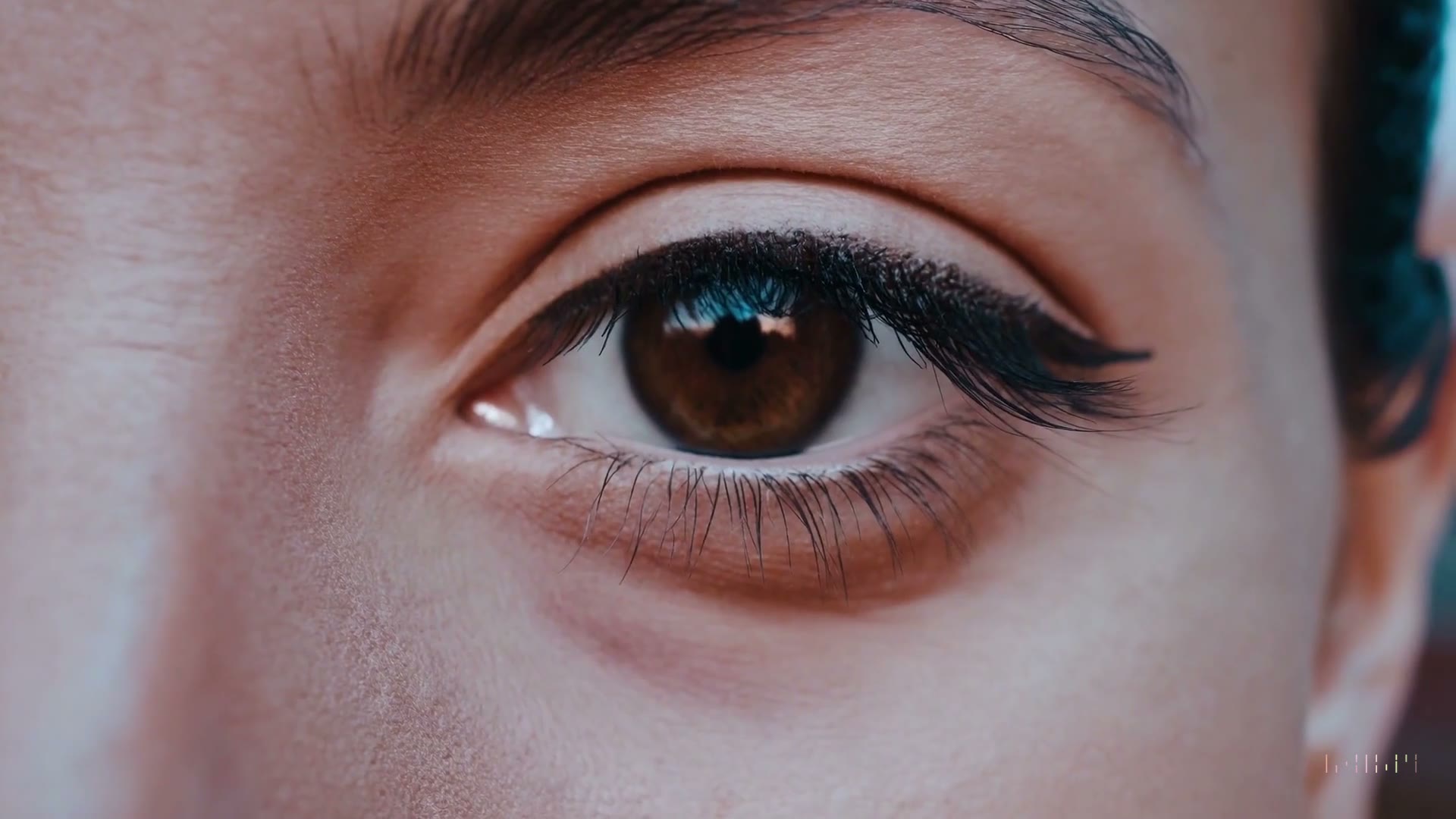
Subtle blink and gentle handheld camera drift on a cinematic portrait, warm sunset light, shallow depth of field, calm premium fashion mood.

Kling 3.0, 16:9, 10 seconds, image-to-video

Kling vertical social opener prompt example

Vertical social opener

Fast vertical opener for a creator desk setup, camera push-in from keyboard to monitor, soft morning light, energetic productivity content style.

Kling 3.0, 9:16, 10 seconds

Kling product motion AI video prompt example

Product motion test

Premium product close-up, slow orbit, clean reflections, dark studio background, subtle light sweep across the surface, steady final hold.

Kling 3.0, 16:9, 10 seconds

Kling 3.0 vs Wan 2.6 in MICT

Pick the workflow that matches the asset you already have.

ScenarioGuidance
Kling 3.0 best fitShort-form experiments, image-to-video motion tests, creator-style concepts, and prompt variations.
Wan 2.6 best fitPolished cinematic directions, campaign mood clips, and alternate outputs for comparison.
Shared controlsMICT exposes model, mode, duration, aspect ratio, quality, resolution, credit estimate, and generation history.
Important noteMICT is not the official Kling site; availability, policy, and output behavior depend on upstream provider access.
Selection methodRun the same prompt through both models when a project depends on motion style, consistency, or final review quality.

Frequently asked questions

Short answers for creators comparing AI video workflows.

Is MICT the official Kling AI website?

No. MICT is not the official Kling website and should not be presented as one. MICT provides a unified AI video creation workspace where Kling 3.0 may be available alongside other active models such as Wan 2.6. Availability, provider policy, and exact output behavior depend on upstream access.

Can I use Kling 3.0 for image-to-video in MICT?

MICT is designed to support both text-to-video and image-to-video workflows, with available model options shown inside the Studio. If Kling 3.0 is available for the selected mode and settings, you can upload a reference image and describe the motion. Always review consistency before using the output publicly.

When should I choose Kling 3.0 instead of Wan 2.6?

Choose Kling 3.0 when you want to test its style for short-form concepts, image motion, or creator-facing ideas. Choose Wan 2.6 as a comparison path for polished cinematic directions. Because outputs vary, the practical method is to run the same prompt through both models and compare results.

What settings affect Kling AI video quality?

Kling output quality in MICT can depend on prompt clarity, source image quality, mode, duration, aspect ratio, quality, resolution, and provider constraints. A focused prompt with one main action is usually easier to review than a broad prompt with many scene changes. Exact results are not guaranteed.

Can I use Kling-generated videos for business work?

MICT supports creator and business workflows, but business use still requires review of MICT terms, upstream provider restrictions, platform rules, and rights for uploaded assets. For ads or product pages, check brand accuracy, claims, people, logos, and any regulated content before publishing or sharing externally.

Ready to test it?

Open MICT Studio with the right mode selected, then generate your first version.